Skip to content
Learning how to make a Claude project public is becoming increasingly important as teams adopt Anthropic tools for collaborative AI workflows. But there is one critical detail many users misunderstand: a Claude project public setting does not mean your project becomes visible on the open internet.
Instead, Claude project visibility is primarily designed for organization-wide sharing inside Claude.ai Teams and Enterprise environments. Understanding the difference between project sharing, conversation sharing, and artifact publishing is essential before changing any access settings.
This guide explains exactly how to make Claude project public, what permissions actually do, how artifact publishing works, and how to safely manage Claude project visibility in 2026.
What “Public” Actually Means in Claude Projects
Before you make Claude project public, you need to understand what “public” means inside the Claude ecosystem.
Public = Visible to Your Organization, NOT the Open Internet
In most cases, a Claude project public setting means the project becomes visible to members of your organization only. This applies to:
- Claude Teams
- Claude Enterprise
When you enable Claude project public visibility, other people in your workspace can discover the project through the Team tab and internal search features.
It does not automatically create a public internet URL.
Individual Chats Stay Private by Default Even in a Public Project
A major misconception about how to make Claude project public is assuming every conversation becomes visible automatically.
That is not how Claude Projects work.
Even if a project is shared organization-wide:
- Individual chats usually remain private by default
- Conversations may still require explicit sharing
- Sensitive discussions should still be reviewed before enabling broader access
This separation helps teams collaborate while protecting confidential conversations.
Project Public vs Artifact Public: Two Different Things
Another important distinction:
Claude Project Public
- Shares the workspace internally
- Gives collaborators access to the project knowledge base
- Enables org-wide visibility
Claude Artifact Public
- Creates a shareable public URL
- Can be embedded on websites
- May be accessible outside your organization
Artifacts are separate from the Claude project public system.
Prerequisites: What You Need Before Making a Claude Project Public
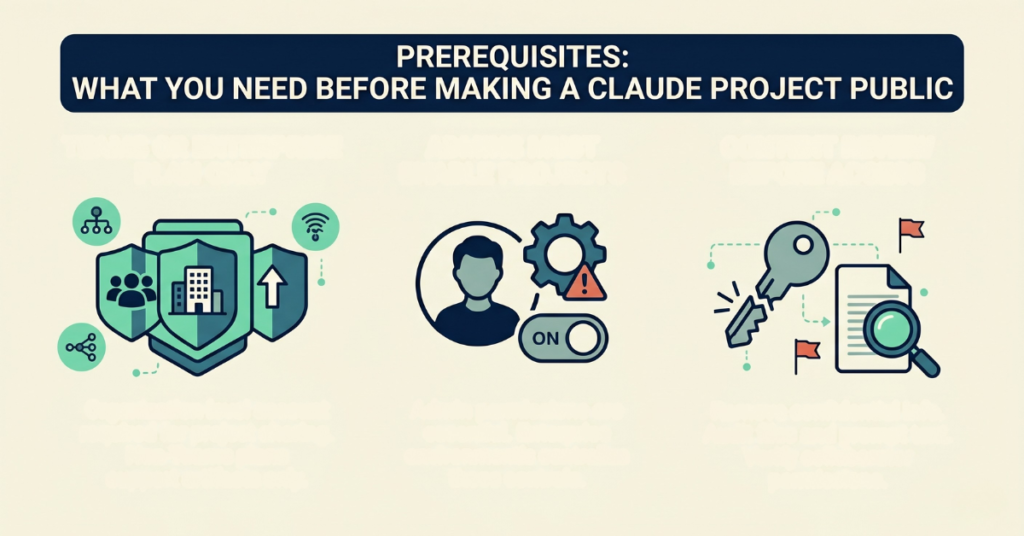
Not every Claude account supports public project sharing.
Plan Requirement: Teams or Enterprise Plan Only
The ability to make Claude project public is generally limited to:
- Claude Teams
- Claude Enterprise
Users on:
- Claude Free
- Claude Pro
- Claude Max
can publish artifacts publicly, but they typically cannot enable organization-wide Claude project visibility.
Organization Setting: Admins Must Enable Public Projects
In many Enterprise environments, admins control whether users can make Claude project public.
Organization administrators may:
- Allow all public projects
- Restrict sharing permissions
- Disable organization-wide visibility entirely
- Limit external sharing
If the General access option is missing, your admin settings may block the feature.
Content Review Before Expanding Access
Before changing Claude project visibility:
- Remove confidential information
- Review uploaded files
- Check embedded prompts
- Audit the project knowledge base
- Verify collaborator permissions
Remember that Can Edit users may access the entire project context.
How to Make a Claude Project Public (Step-by-Step)
Here is the complete process for how to make Claude project public inside Claude Teams or Enterprise.
Step 1: Open the Project in Claude.ai
Go to:
Open the specific project you want to share.
Step 2: Click the Share Button
Inside the project interface:
- Locate the Share button
- It usually appears in the top-right corner
- Open the sharing panel
This is where Claude project visibility settings are managed.
Step 3: Under General Access, Click “Only People Invited”
By default, most projects are private.
You will typically see:
Only people invited
This means only manually added collaborators can access the project.
Step 4: Change to “Everyone at Your Organization”
To make Claude project public internally:
- Open the dropdown
- Select:
Everyone at [Your Organization]
This enables organization-wide visibility.
Step 5: Confirm the Change
After confirmation:
- The project appears in the Team tab
- Authorized members can discover it
- Shared knowledge base access becomes available
- Team collaboration becomes easier
This completes the process for how to make Claude project public.
What Happens After You Make a Claude Project Public?
Once a Claude project public setting is enabled:
- Team members can locate the project
- Collaborators may request access
- Shared prompts and context become reusable
- Project discoverability increases across the organization
However:
- Private chats may remain private
- Artifact publishing is still separate
- External internet visibility is not automatic
How to Share a Single Conversation Within a Project
Sometimes you do not want the entire project visible.
Instead, you may want to share one conversation.
Open the Specific Chat
Navigate to the conversation inside the project.
Click Share
Claude may provide options such as:
- Create shareable link
- Internal organization access
- Keep private
Choose the visibility level you need.
Public Link vs Private Sharing
A public link may allow:
- Read-only viewing
- External access
- Browser-based sharing
But organization-wide project sharing and conversation sharing are separate systems.
How to Publish and Share Claude Artifacts
Artifacts are one of the most useful features in the Claude ecosystem.
Publishing an Artifact
Artifacts can include:
- Documents
- Charts
- Diagrams
- Code outputs
- Interactive content
After generating an artifact:
- Click Publish
- Generate a public URL
- Enable sharing
Artifact publishing is available even on some non-Team plans.
Getting the Public URL
Once published, Claude generates:
- A shareable public link
- Optional embed support
- External viewing access
This is the true internet-facing sharing mechanism.
Getting the Embed Code
Some artifacts also support embed functionality.
You can:
- Copy the HTML snippet
- Embed it into websites
- Add it to CMS platforms
- Share interactive outputs publicly
How to Change a Claude Project Back to Private
If you need to reverse the process:
Public to Private Steps
- Open the project
- Click Share
- Open General access
- Change:
- Everyone at organization
to - Only people invited
- Everyone at organization
- Save changes
This immediately reduces Claude project visibility.
How to Share Claude Projects With External Users
A standard Claude project public setting does not usually support open internet access for full projects.
Instead, use these workarounds.
Publish Individual Artifacts
Artifacts are the best external sharing option.
They provide:
- Public URLs
- Easy browser access
- Embed support
Export Chat Transcripts
You can export:
- Conversations
- Research summaries
- Documentation
- AI-generated outputs
Then share them manually as PDFs or documents.
Claude Code Export + GitHub
For developers using Claude Code:
- Use the /export command
- Push outputs to GitHub
- Deploy demos on Vercel or GitHub Pages
This is common for technical collaboration.
Permission Levels Explained
Understanding permissions is critical when learning how to make Claude project public safely.
Can View
Users can:
- Read project content
- Access shared context
- Review outputs
But they typically cannot:
- Modify files
- Edit prompts
- Change project settings
Can Edit
Users with edit access can:
- Modify prompts
- Add files
- Change project knowledge base
- Edit shared instructions
Use this carefully.
Admin Controls
Organization admins can:
- Disable public projects
- Restrict sharing
- Limit external access
- Enforce compliance rules
Enterprise environments often centralize these permissions.
Common Mistakes When Making Claude Projects Public
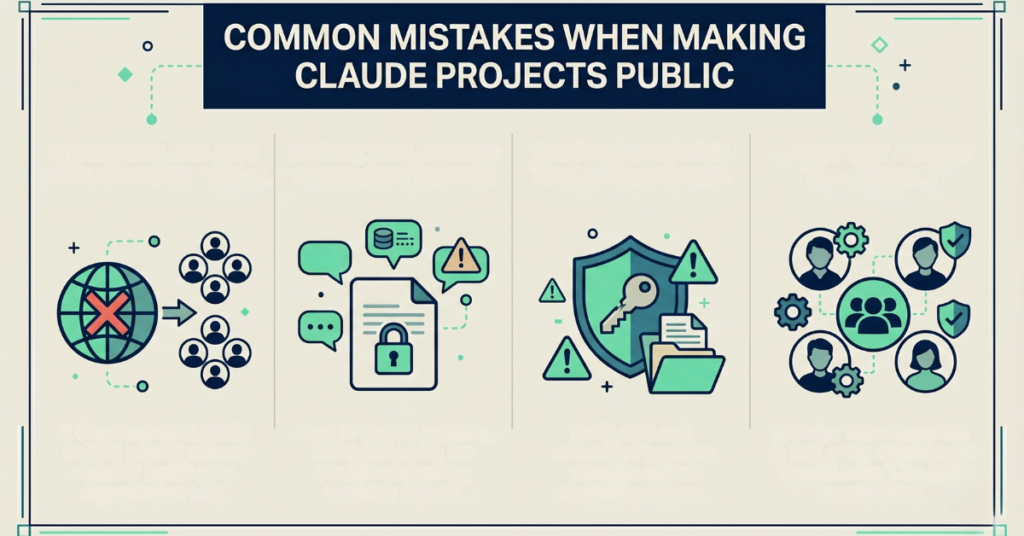
Common errors include:
- Confusing public with internet-visible
- Forgetting private chats still exist
- Sharing sensitive knowledge bases
- Giving edit access too broadly
- Publishing artifacts unintentionally
- Assuming all plans support public sharing
Always review permissions before enabling broader access.
Final Thoughts
Understanding how to make Claude project public is mostly about understanding Claude’s collaboration architecture.
The key takeaway is simple:
- Projects are usually shared internally
- Conversations can remain private
- Artifacts are the primary public-sharing mechanism
- Teams and Enterprise plans unlock the full collaboration workflow
Once configured correctly, Claude Projects become a powerful system for collaborative AI research, documentation, SEO workflows, development, and internal knowledge management.
FAQs
- Can I make a Claude project public on the free plan?
No. Full Claude project public sharing typically requires a Teams or Enterprise plan. Free, Pro, and Max plans mainly support artifact publishing instead.
- Does making a Claude project public make it visible on Google?
No. A Claude project public setting usually means visibility inside your organization only, not public indexing on the internet.
- What is the difference between a project and an artifact in Claude?
A project is a collaborative workspace with shared context and knowledge bases. An artifact is an individual output, such as a document or chart, that can be published with a public URL.
- Can external users access my Claude project?
Not directly in most cases. External sharing is usually done through:
- Published artifacts
- Exported documents
- Shared conversation links
- GitHub or Vercel deployments
- How do I change a Claude project from public back to private?
Open the project, click Share, go to General access, and switch from “Everyone at your organization” back to “Only people invited.”
Need help implementing AI collaboration systems, SEO automation, or custom AI workflows for your business? Explore AmazeTech for AI-powered development, automation, and scalable digital solutions.